

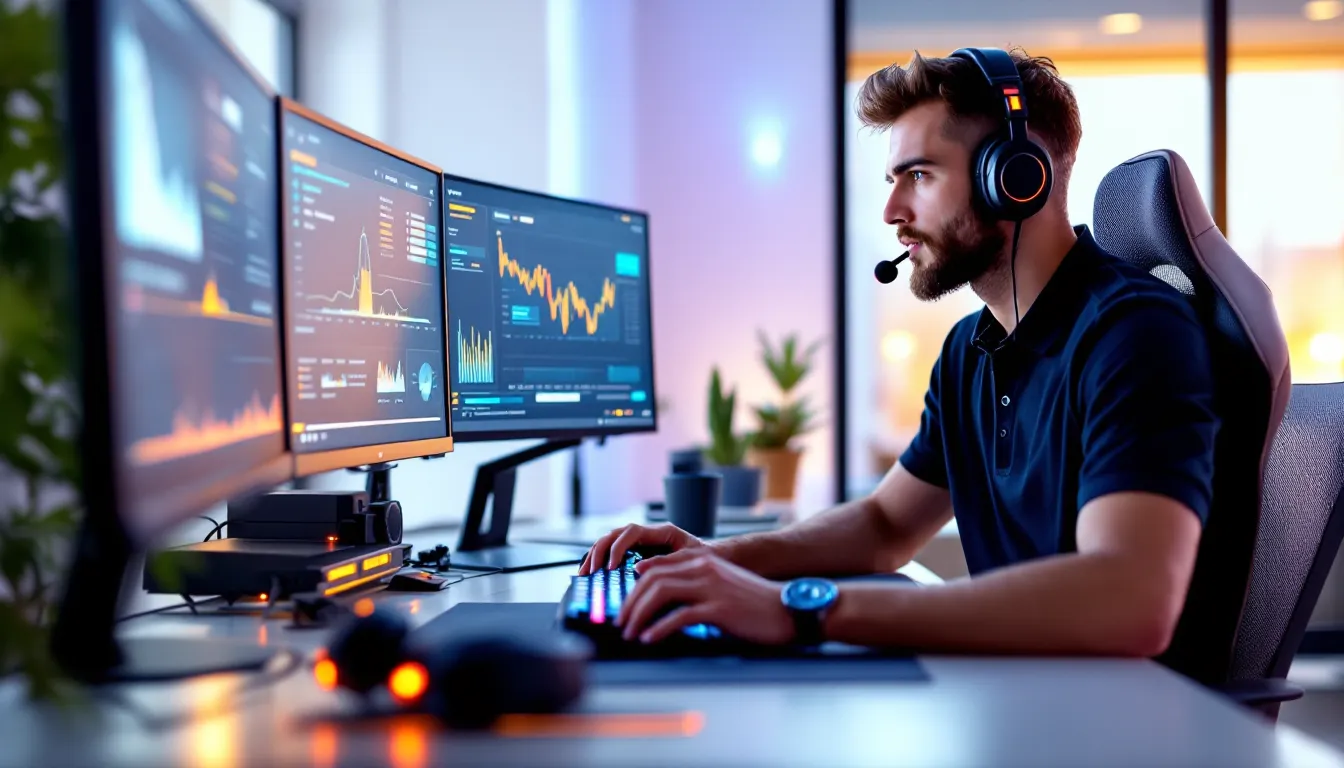

If you’ve ever asked yourself “what FPS is good for gaming,” you’re not alone. Frame rate is one of the most debated topics in gaming communities, and for good reason, it directly affects how smooth, responsive, and enjoyable your games feel. But the answer isn’t one-size-fits-all. What works for a turn-based strategy game won’t cut it in a competitive shooter, and what’s acceptable on console might feel sluggish on PC.
In 2026, gaming hardware has pushed frame rates higher than ever, with 240Hz monitors becoming mainstream and even consoles offering performance modes that target 120 FPS. But more frames don’t always mean a better experience, and chasing numbers without understanding the context can lead to wasted money and frustration.
This guide breaks down everything you need to know about FPS in gaming: what it actually means, how different genres demand different frame rates, and how to find the best FPS for gaming based on your setup, preferences, and the games you play. Whether you’re running a budget rig or a high-end battlestation, you’ll walk away knowing exactly what to aim for.
Key Takeaways
- A good FPS for gaming ranges from 60 FPS for single-player experiences to 120-240+ FPS for competitive shooters, depending on your game genre and hardware.
- The jump from 30 to 60 FPS is more impactful than higher refresh rates, providing noticeable improvements in smoothness and responsive controls across most games.
- Higher FPS reduces input lag and improves competitive performance—at 120 FPS, frame delay drops to about 8ms compared to 33ms at 30 FPS, giving you a measurable edge in esports titles.
- Adjusting graphics settings like shadows, anti-aliasing, and ray tracing can boost your FPS by 15-30% before considering hardware upgrades, making optimization a cost-effective first step.
- Match your FPS target to your monitor’s refresh rate; there’s no visual benefit to chasing FPS your screen cannot display, though higher GPU output still reduces input lag.
Understanding FPS: What Frame Rate Actually Means
Frames per second (FPS) is the number of individual images your GPU renders and displays on your screen every second. Higher FPS means smoother motion, less input lag, and a more responsive feel. Lower FPS results in choppy visuals, delayed reactions, and a sluggish experience that can cost you matches, or just make exploration feel like wading through molasses.
Think of it like a flipbook. At 10 pages per second, the animation looks jerky. At 60, it’s fluid. At 120 or 240, motion becomes buttery smooth, especially during fast camera movements or quick flicks in shooters.
How FPS Impacts Your Gaming Experience
FPS affects three critical aspects of gameplay: visual smoothness, input responsiveness, and competitive performance.
Visual smoothness is the most obvious. Low FPS creates visible stuttering, especially during fast panning shots or high-speed chases. This breaks immersion and makes it harder to track enemies or objects in motion.
Input responsiveness is where things get interesting. Higher FPS reduces the delay between your mouse click or controller input and the action appearing on screen. At 30 FPS, each frame represents roughly 33 milliseconds of delay. At 120 FPS, that drops to about 8ms. For competitive players, those milliseconds matter.
Competitive performance ties it all together. In esports titles like Valorant, CS2, or Apex Legends, players routinely run 240+ FPS even if their monitor is capped at 165Hz or 240Hz. Why? Because higher frame output means fresher frames sent to the display, reducing input lag and giving you the most up-to-date visual information during clutch moments.
The Relationship Between FPS and Refresh Rate
Your monitor’s refresh rate (measured in Hz) determines how many frames it can physically display per second. A 60Hz monitor can only show 60 frames per second, even if your GPU is pumping out 200 FPS.
But here’s the kicker: running higher FPS than your refresh rate still has benefits. The GPU selects the most recent frame to send to the display, reducing perceived input lag. That said, you won’t see the full visual benefit until you upgrade to a higher refresh rate monitor.
If you’re gaming at 144Hz or higher, you’ll notice a dramatic difference compared to 60Hz, especially in fast-paced genres. The jump from 60Hz to 144Hz is more noticeable than the leap from 144Hz to 240Hz, but competitive players swear by the latter.
Screen tearing happens when your FPS exceeds your monitor’s refresh rate without synchronization tech like G-Sync or FreeSync. The image splits mid-frame, creating a horizontal line across the screen. V-Sync can fix this by capping FPS to your refresh rate, but it introduces input lag. Adaptive sync technologies eliminate tearing without the lag penalty.
Minimum FPS Standards by Game Genre
Not all games demand the same frame rate. Genre dictates how much FPS you actually need to enjoy or compete effectively.
Competitive Shooters and Esports Titles
For games like Valorant, Counter-Strike 2, Overwatch 2, Call of Duty: Warzone, and Apex Legends, 120 FPS is the minimum for serious competitive play. Most esports pros target 240+ FPS to minimize input lag and maximize reaction time.
At 60 FPS, you’re at a measurable disadvantage. Your enemies see you first, their shots register faster, and your flicks feel sluggish. If you’re serious about ranked play, anything below 120 FPS will hold you back.
Casual players can get by at 60-90 FPS in these titles, but once you experience 144Hz or higher, going back feels like gaming with weights on your wrists.
Action-Adventure and Open World Games
Titles like Elden Ring, Cyberpunk 2077, Starfield, Red Dead Redemption 2, and Horizon Forbidden West prioritize visuals and immersion over twitch reflexes.
60 FPS is the sweet spot here. It provides smooth exploration, responsive combat, and enough headroom to crank up graphics settings. 30 FPS is playable, especially on console, but it feels sluggish on PC where players expect tighter control.
If you can push 90-120 FPS in these games, great. But it’s not essential unless you’re playing something like Monster Hunter: Wilds where combat timing matters.
Strategy, Puzzle, and Turn-Based Games
Games like Civilization VII, XCOM 2, Baldur’s Gate 3, Slay the Spire, and Tetris Effect don’t require high frame rates to function.
30-60 FPS is perfectly acceptable. There’s no competitive disadvantage, and the slower pace means visual smoothness isn’t critical. That said, 60 FPS feels better even in turn-based games, menus are snappier, animations are cleaner, and the experience is just more polished.
If your system struggles in these genres, prioritize resolution or visual quality over FPS.
Racing and Simulation Games
Racing sims like iRacing, Assetto Corsa Competizione, F1 24, Gran Turismo 7, and Forza Motorsport sit in a unique category.
90-120 FPS is ideal for maintaining visual clarity during high-speed turns and reducing motion blur. Lower FPS makes it harder to judge braking points and track edges, especially in VR racing where frame rate directly affects comfort and immersion.
Flight sims like Microsoft Flight Simulator 2024 and DCS World can be playable at 45-60 FPS due to slower pacing, but smoother is always better for situational awareness.
30 FPS vs 60 FPS vs 120 FPS: Breaking Down the Differences
Let’s cut through the noise and talk about what these frame rate tiers actually feel like in practice.
30 FPS: When Is It Acceptable?
30 FPS used to be the console standard for years, especially on PlayStation 4 and Xbox One. It’s playable, but only in slower-paced games where input lag doesn’t ruin the experience.
You’ll find 30 FPS acceptable in:
- Story-driven adventures with cinematic presentation (The Last of Us Part II, Uncharted 4)
- Turn-based RPGs and strategy games
- Some indie titles designed around lower performance targets
On PC, 30 FPS feels noticeably worse due to the higher input precision of mouse and keyboard. Console players adapt because controller aim smoothing and motion blur mask some of the sluggishness.
In 2026, 30 FPS should be a last resort, not a target. Most modern consoles offer performance modes that hit 60 FPS, and even budget PC hardware can manage it in most games with settings tweaks.
60 FPS: The Sweet Spot for Most Gamers
60 FPS is the current baseline for good gaming performance. It’s smooth enough for responsive controls, clean enough for fast motion, and achievable on mid-range hardware without sacrificing visual quality.
This is the good FPS for gaming if you’re playing on a 60Hz monitor or a console in performance mode. Games feel snappy, combat is responsive, and you’re not missing out on the core experience.
The jump from 30 to 60 FPS is the single most impactful upgrade you can make. It’s more noticeable than resolution bumps or ultra settings in most cases.
120+ FPS: The Competitive Edge
Once you cross 120 FPS, you enter diminishing returns territory, but those returns still matter for competitive gaming.
At 120-144 FPS on a matching refresh rate monitor, motion clarity improves significantly. Fast flicks feel instantaneous, tracking is smoother, and you gain a measurable edge in PvP scenarios.
Pushing to 240 FPS offers smaller but still real benefits. Pro players and serious ranked grinders swear by it, and if you’ve invested in a 240Hz or 360Hz monitor, you’ll feel the difference in twitch-heavy games.
Beyond 240 FPS, you’re in enthusiast territory. The difference between 240 and 360 FPS exists, but it’s marginal unless you’re competing at the highest levels.
For most gamers, the best FPS for gaming sits between 90-144 FPS depending on genre and monitor. It’s the zone where smoothness and competitive viability meet without requiring top-tier hardware.
Platform-Specific FPS Expectations in 2026
Your platform shapes what frame rates are realistic and what you should target.
PC Gaming: Customizable Performance Targets
PC offers the widest FPS range, from budget builds struggling at 45 FPS to high-end rigs crushing 300+ FPS in esports titles.
Budget builds (RTX 4060 / RX 7600 tier): Expect 60-90 FPS in modern AAA games at 1080p medium settings. Competitive titles will hit 120-144 FPS easily.
Mid-range builds (RTX 4070 / RX 7700 XT tier): 90-120 FPS in AAA games at 1440p high settings. Esports games will cruise at 200+ FPS.
High-end builds (RTX 4080 / RX 7900 XTX tier): 120-165 FPS in demanding AAA titles at 1440p ultra or 4K high. Competitive games hit 300+ FPS.
Enthusiast builds (RTX 4090 tier): 144+ FPS at 4K in most games, 240+ FPS at 1440p in competitive shooters.
PC gamers should match their FPS targets to their monitor. If you’re running a 144Hz display, aim for stable 144 FPS. Don’t chase 300 FPS if your screen can’t display it unless you’re playing competitively.
Performance analysis from sources like DSOGaming regularly benchmarks how different GPU tiers handle new releases, giving you realistic FPS expectations before you buy.
Console Gaming: What to Expect from PlayStation, Xbox, and Nintendo
PlayStation 5 and Xbox Series X both target 60 FPS in performance mode for most titles in 2026. Quality modes often drop to 30 FPS for higher resolution or ray tracing.
Competitive games like Call of Duty, Fortnite, and Apex Legends offer 120 FPS modes if you have a compatible TV or monitor. This is the minimum for console players serious about ranked play.
Xbox Series S typically runs games at 60 FPS in performance mode at lower resolutions (1080p-1440p). Some demanding titles still cap at 30 FPS.
Nintendo Switch remains locked at 30 FPS for most games, with select titles like Mario Kart 8 Deluxe and Splatoon 3 hitting 60 FPS. The Switch is the exception where 30 FPS is still standard due to hardware limitations.
Console gamers should always enable performance mode unless visuals are the priority. The FPS boost is worth the resolution drop in almost every case.
Mobile Gaming: Frame Rate Standards for Smartphones and Tablets
Mobile gaming FPS depends heavily on your device tier.
Flagship phones (iPhone 15 Pro, Samsung Galaxy S24 Ultra, etc.) can hit 60-120 FPS in optimized titles like Genshin Impact, PUBG Mobile, and Call of Duty Mobile. Some devices support 90Hz or 120Hz displays, making higher frame rates noticeable.
Mid-range phones target 60 FPS in less demanding games, often dropping to 30 FPS in graphically intensive titles.
Budget phones struggle to maintain 30 FPS in modern games.
Mobile gaming prioritizes battery life over frame rate, so even capable devices may cap FPS to conserve power. Most competitive mobile players use iPads or gaming phones with active cooling to sustain higher frame rates during tournaments.
How to Check Your Current FPS
You can’t improve what you don’t measure. Here’s how to see your current frame rate.
Built-In Game Overlays and Settings
Most modern games include an FPS counter in the settings menu. Look under Display, Graphics, or HUD options. Enable it, and you’ll see real-time FPS displayed in a corner of the screen.
Platform launchers also offer overlays:
- Steam Overlay: Enable in Settings > In-Game > FPS Counter. Choose your preferred corner.
- Xbox Game Bar (Windows 11): Press Win+G, then enable the Performance widget to see FPS, GPU usage, and CPU load.
- GeForce Experience (Nvidia): Press Alt+R to open the overlay, then enable FPS counter in settings.
- AMD Software: Press Alt+R, then enable metrics overlay to display FPS.
- EA App, Epic Games Launcher, Battle.net: Most include built-in FPS displays in their overlay settings.
Third-Party Monitoring Tools
For deeper performance tracking, third-party tools provide more data than simple FPS counters.
MSI Afterburner with RivaTuner is the gold standard. It displays FPS, frame time, GPU/CPU temps, usage percentages, and VRAM. It’s free, lightweight, and works with all GPUs.
Fraps is old-school but reliable for basic FPS display and benchmarking.
HWiNFO64 paired with RivaTuner offers the most detailed monitoring, tracking dozens of sensors at once.
Nvidia FrameView is designed for detailed frame time analysis and is useful for diagnosing stuttering issues.
If you’re troubleshooting performance, hardware review sites like TechSpot and Tom’s Hardware use these tools to benchmark GPUs and identify bottlenecks, offering guidance on what FPS you should expect from your hardware.
Optimizing Your Setup to Achieve Higher Frame Rates
If your FPS isn’t where you want it, a few tweaks can make a massive difference before you consider hardware upgrades.
Graphics Settings Adjustments That Matter Most
Not all graphics settings impact FPS equally. Here’s what to adjust first:
Shadow Quality: Shadows are performance killers. Drop from Ultra to Medium or Low for a 15-30% FPS boost with minimal visual loss.
Anti-Aliasing: TAA and MSAA are expensive. Switch to FXAA or lower the AA setting for easy gains.
Ambient Occlusion: SSAO and HBAO add subtle shadows but cost 5-10 FPS. Turn it off if you need frames.
Volumetric Fog/Lighting: Beautiful but brutal on performance. Disable or lower quality.
Reflections: Screen-space reflections (SSR) are cheaper than ray-traced reflections. Stick with SSR or turn reflections off.
Render Distance/View Distance: In open-world games, lowering this can free up 10-20 FPS.
V-Sync: Turn it off unless screen tearing bothers you. V-Sync caps FPS and adds input lag.
Motion Blur and Depth of Field: These are preference-based and often disabled by competitive players. Turning them off may give a small FPS bump.
Resolution Scaling/DLSS/FSR: Nvidia’s DLSS 3.5 and AMD’s FSR 3.1 render at lower internal resolution and upscale intelligently. Enabling these can boost FPS by 30-80% with minimal visual loss. If you have an RTX 40-series card, DLSS Frame Generation can literally double your FPS.
Hardware Upgrades for FPS Improvement
If settings tweaks aren’t enough, hardware is the bottleneck.
GPU upgrade has the biggest impact on FPS. If you’re stuck at 45-60 FPS in modern games, upgrading from a GTX 1660 to an RTX 4060 or RX 7600 will get you to 90-120 FPS at 1080p.
CPU upgrade matters in competitive games and CPU-bound scenarios (high refresh rate gaming, strategy games, heavily modded titles). If your GPU usage is low but FPS is still poor, your CPU is the issue.
RAM upgrade: 16GB is the minimum in 2026. Going to 32GB helps in memory-intensive games like Starfield, Cities Skylines II, and heavily modded titles. Faster RAM (3200MHz → 6000MHz) gives 5-15% FPS boosts in CPU-bound scenarios.
SSD upgrade: Won’t directly boost FPS, but reduces stuttering from asset streaming. NVMe Gen 4 drives help in DirectStorage-enabled games.
Monitor upgrade: If you’re stuck at 60Hz, upgrading to 144Hz or 165Hz is transformative. Your GPU might already be rendering 100+ FPS, but you’re not seeing it.
Driver Updates and System Optimization
Keeping your GPU drivers updated ensures you get performance optimizations for new games. Nvidia and AMD release Game Ready drivers with each major release.
Clean driver installs using DDU (Display Driver Uninstaller) can fix stuttering and FPS drops caused by corrupted files.
Windows optimization tips:
- Enable Game Mode in Windows settings
- Disable Hardware-Accelerated GPU Scheduling if you experience stuttering (or enable it if it’s off, results vary by system)
- Set your game’s priority to High in Task Manager
- Close background apps (Chrome, Discord, streaming software) that consume CPU/GPU resources
- Disable fullscreen optimizations (right-click game .exe > Properties > Compatibility)
Overclocking your GPU or CPU can squeeze out 5-15% more FPS if your cooling is adequate. Use MSI Afterburner for GPU OC and adjust your BIOS for CPU OC. Be cautious and research your specific hardware.
Reinstalling Windows as a last resort can fix mysterious FPS issues caused by driver conflicts, bloatware, or system corruption.
Common FPS Myths and Misconceptions
Let’s clear up some FPS myths that refuse to die.
Can the Human Eye Really See Beyond 60 FPS?
Yes. Absolutely. This myth needs to be buried.
The “human eye can’t see past 60 FPS” claim is outdated and scientifically inaccurate. Our eyes don’t work in frames per second, they process motion as a continuous stream. Fighter pilots have been tested to identify images flashed for 1/220th of a second, suggesting we can perceive far beyond 60 FPS.
In gaming, the difference between 60 and 144 FPS is immediately obvious to most players. Motion is noticeably smoother, input lag is reduced, and tracking moving objects becomes easier.
The diminishing returns argument has merit, 120 to 240 FPS is less noticeable than 30 to 60, but claiming we can’t see above 60 is flat wrong.
If you’ve never experienced 144Hz+, you’re missing out. Once you go high refresh rate, 60 FPS feels choppy by comparison.
Does Higher FPS Always Mean Better Graphics?
No. FPS and graphical fidelity are often at odds.
Higher FPS usually requires lowering graphics settings, reducing resolution, or using upscaling tech. A game running at 240 FPS on Low settings looks worse than the same game at 60 FPS on Ultra.
The trade-off is personal preference:
- Competitive players prioritize FPS over visuals. Lower settings improve visibility (less clutter, clearer enemy outlines) and reduce input lag.
- Single-player enthusiasts prioritize visuals. 60 FPS with maxed-out graphics and ray tracing creates a more immersive experience than 120 FPS on Medium.
There’s no right answer. A stable 60 FPS with high settings might be the best FPS for gaming in a narrative-driven game, while 240 FPS on Low is ideal for ranked Valorant.
Don’t let elitists tell you that high FPS is the only metric that matters. Play what feels good to you.
Finding Your Personal FPS Target
So, what is the best FPS for gaming? The answer depends on your hardware, monitor, game genre, and competitive goals.
Here’s a quick reference guide:
For competitive shooters and esports:
- Minimum: 120 FPS
- Recommended: 144-240 FPS
- Ideal: 240+ FPS (if you have a matching monitor)
For action-adventure, RPGs, and open-world games:
- Minimum: 45 FPS
- Recommended: 60 FPS
- Ideal: 90-120 FPS
For strategy, turn-based, and puzzle games:
- Minimum: 30 FPS
- Recommended: 60 FPS
- Ideal: 60+ FPS
For racing and simulation games:
- Minimum: 60 FPS
- Recommended: 90-120 FPS
- Ideal: 120+ FPS (especially in VR)
Your monitor’s refresh rate sets your ceiling. If you have a 60Hz display, there’s no visual reason to chase 144 FPS, though the input lag reduction still helps. If you’re running 144Hz or higher, aim to match or exceed your refresh rate in the games where it matters.
Don’t sacrifice stability for peak FPS. A locked 90 FPS feels better than fluctuating between 60 and 120. Use frame caps or adaptive sync to smooth out frame pacing.
And remember: FPS is just one piece of the puzzle. A good gaming experience comes from stable frame times, low input lag, and settings that match your priorities. Chase the numbers that improve your gaming, not someone else’s.
Conclusion
Frame rate isn’t a one-size-fits-all number. What FPS is good for gaming depends on the game, your hardware, and how you play. Competitive players need 120+ FPS to stay sharp. Single-player fans can savor 60 FPS with maxed visuals. Budget gamers can still have a great time at 45-60 FPS with smart settings tweaks.
The key takeaway? Don’t obsess over hitting arbitrary numbers. Focus on stable, consistent performance that feels smooth in the genres you love. Upgrade your monitor before chasing FPS your screen can’t display. Tweak settings before buying new hardware. And most importantly, play what feels good to you.
Frame rate matters, but it’s not everything. Balance performance with visuals, stability with peak numbers, and competitive edge with personal enjoyment. That’s how you find your perfect FPS.